Getting started
A step-by-step example of how to save and load a scene:
- Download and import Save Is Easy from the Asset Store.
- Create a new scene.
- Create a GameObject and add the SaveIsEasyManager component. In this component you configure how the game is saved and loaded.
- Add the ExampleControlGUI component to the same GameObject. It shows a menu in the game.
- Create a Cube and add the SaveIsEasyComponent component. In this component you select the fields that are saved and loaded: click on Transform and check the position checkbox.
- Press Play.
- Move the cube around the scene and save and load its position with the menu buttons in the game, or with the buttons of the SaveIsEasyManager.
The asset also comes with example scenes in Assets/Save is easy/Examples.
Important
- The main class of the asset is
SaveIsEasyAPI, for exampleSaveIsEasyAPI.SaveAll()andSaveIsEasyAPI.LoadAll(). - You need one SaveIsEasyManager in a GameObject of each scene you want to save or load.
- You can save in a thread or not. In a thread, saving does not affect the FPS but takes longer; without a thread it is faster but the game stops while it saves.
- The API does not require you to specify the scene, but then only one scene can be loaded at a time. To use several scenes at once, see Multi-scene.
If you use the On Exit Save option, avoid calling Destroy(Object obj, float t) with a delay on objects you want to save: when the game closes they are removed before they can be saved.
SaveIsEasyManager
You can only have one SaveIsEasyManager per scene.
The SaveIsEasyManager keeps the configuration to save and load the scene it is in. It also handles more general tasks, such as creating prefabs and auto saving.
- File Name: the default name of the file to save and load. It supports relative and absolute paths, for example
level1.game,level2,test/level3,C:/Test/level4orC:/Test/level5.game. - Exclusive Files: only allows loading a game that was saved in the same scene.
- Auto Saving: saves automatically every some time. It shows the auto saving options (9).
- Auto Load On Play: loads the game automatically when it starts.
- On Exit Save: saves automatically when the game closes.
- Duplicate Save File: keeps a copy of the saved file, so the save is not lost if something goes wrong. The asset handles the copy automatically.
- Use Encryption Tools: turns encryption on or off. It shows the encryption options (8).
- Encryption options:
- Password: it is used to encrypt and decrypt the saves. The longer and more complex, the more secure. Do not lose it: there is no way to recover it.
- Encryption Config:
- Save And Load: encrypts what this manager saves (QuickAccess information is not included) and loads both encrypted and unencrypted saves.
- Only Load: loads encrypted and unencrypted saves but saves without encryption. Use it to convert encrypted saves back.
- Off: turns the encryption off.
- Auto saving options:
- Auto Saving In Thread: runs the auto saving in a separate thread.
- Auto Saving Interval: the time between saves, in seconds.
- Current Time To Save: adds 1 every second of play. When it reaches the interval it goes back to 0 and the game is saved.
- The prefabs the asset can create when they are not in the scene: select the ones used in this scene. You can select all of them, but it is slower than selecting only the ones you use.
- Refresh: analyzes all the assets of the project again, looking for changes.
- Reset: erases the information of the selected prefabs (only in this manager).
- Buttons to save and load the game. They only work in Play Mode.
Changing the configuration from code
The manager keeps its configuration in a SceneConfig:
var config = SaveIsEasy.SaveIsEasyAPI.SceneConfig;
config.AutoSaving = true;
config.AutoSavingInterval = 60;
The same for a specific scene:
var config = SaveIsEasy.SaveIsEasyAPI.GetSceneConfigByScene(scene);
config.AutoSaving = true;
config.AutoSavingInterval = 60;
SaveIsEasyComponent
You only need one SaveIsEasyComponent in a GameObject to save it.
The SaveIsEasyComponent saves and loads the values of the GameObject it is in, and controls the events of that GameObject.
- The fields and properties that can be saved, grouped by component. Click on a name, for example Transform, to show its fields. If a field does not appear, the asset could not find a way to save it.
- Refresh: analyzes all the components again.
- Reset: unselects everything in the tree and erases any other information saved in the past (only in this GameObject).
- On Load: what happens with
Start()when a game is loaded:- CallStartAfterLoading: loads the GameObject information first and then calls
Start(). - CallStartBeforeLoading: calls
Start()first and then loads the information. - CallStartBeforeAndAfterLoading: calls
Start()before and after loading. - Off: does not call
Start(). Calling it is slow: if you do not need it, use Off.
- CallStartAfterLoading: loads the GameObject information first and then calls
- How the GameObject is loaded:
- Always present in the scene: when loading, the asset looks for the GameObject with the same identifier among the loaded GameObjects and loads its information.
- Created at runtime: the asset asks the SaveIsEasyManager for the prefab of that identifier, creates it in the scene and loads its information.
- Identifier (ID): the asset uses it to know which GameObject or prefab each saved information belongs to. GameObjects created at runtime from the same prefab share the identifier, because it is used to find their prefab.
- Only for GameObjects that are always present in the scene: if the identifier is not found among the loaded GameObjects, the GameObject is created from its prefab.
Events
To receive the OnLoad and OnSave events, implement the ISaveIsEasyEvents interface in your script. The events are called whether the component is enabled or not.
- OnLoad: called after the loaded values are set in the script. At least one value of the script has to be loaded.
- OnSave: called before the values of the script are saved, if it has fields to save.
Attributes
Attributes you can add to your fields:
AlwaysSave: the field is always saved and it cannot be turned off from the editor.AvoidSaving: the field is never saved and it does not appear in the editor.QuickAccess: the field is also saved as QuickAccess information.
QuickAccess
QuickAccess information is never encrypted.
QuickAccess saves some fields apart from the game, so they can be read without loading the whole file. It is used, for example, in a menu that lists the saved games.
Supported types: bool, char, double, float, int, long, short, sbyte, uint, ulong, ushort, string, byte, byte[].
Example
Save a Kills field as QuickAccess information:
using UnityEngine;
using SaveIsEasy;

[RequireComponent(typeof(SaveIsEasyComponent))]
public class QuickAccessExample : MonoBehaviour {

    [QuickAccess]
    public int Kills;

}
Add this component to a GameObject and, in its SaveIsEasyComponent, select the Kills field. From now on every save includes Kills as QuickAccess information.
Read it, for a game saved with the name DefaultLevelName:
using UnityEngine;
using SaveIsEasy;

public class ReadQuickAccess : MonoBehaviour {

    void Start() {
        SceneFile file = SaveIsEasyAPI.GetSceneFile("DefaultLevelName");

        if (file == null) {
            Debug.LogError("The save was not found!");
            return;
        }

        // The name is case sensitive: Kills, not kills
        int kills = file.GetAccessObjectAsType<int>("Kills");
        Debug.Log("Quick Access   Kills: " + kills);
    }
}
SaveIsEasyStatistics
Everything this component saves is available as QuickAccess information.
Avoid having more than one SaveIsEasyStatistics per scene.
The SaveIsEasyStatistics component saves statistics of the game, which are available in the menu of saved games through QuickAccess.
- Loads: how many times the game was loaded.
- Save Screenshot: saves a screenshot every time the game is saved.
- Creation Date: when the game was created, in UTC. Edit (only in Play Mode) lets you change it as text or as UTC.
- Total Time: the total time played in this save, in seconds. Edit lets you change it in days, hours, minutes and seconds, or in seconds.
- Screenshot: the last screenshot taken by this component. Click on it to see it bigger.
File Viewer
To decrypt a file, the window uses the password of the SaveIsEasyManager of the open scene.
The File Viewer, in Window > Save is easy > File Viewer, lets you explore your saved files. It helps to find out whether a problem is in the saving or in the loading of your game, and to optimize your saves: you can find fields that are saved but not used, and unselect them so saving is faster and the file is smaller.
Files Explorer
Browse the folders and open the file you want to review.
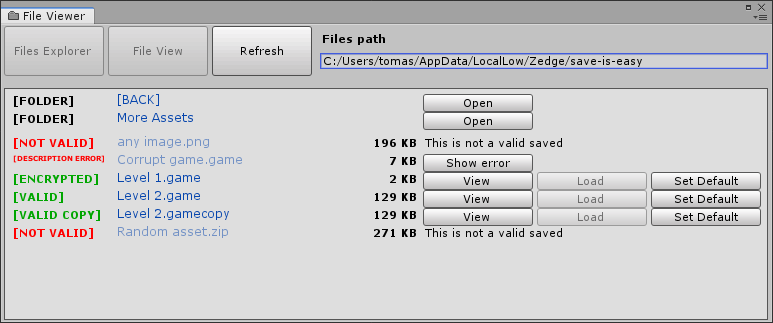
- Files Explorer: goes to this view.
- File View: goes to the view of the open file (disabled until you open one).
- Refresh: reloads the folder, looking for changes.
- Files path: the folder that is open.
- Status of each file:
- Valid: the file could be read completely without errors.
- Valid Copy: like Valid, but it is the copy of another file.
- Encrypted: like Valid, but the file is encrypted.
- Copy encrypted: like Valid Copy, but the file is encrypted.
- Not valid: the file does not have the header of the asset, it is not a save.
- Corrupted: the file has the header of the asset, but reading it failed.
- Decryption error: like Corrupted; most likely the password of the SaveIsEasyManager is wrong.
- Name of the folders and files. Click to open them.
- Size of the files.
- Actions:
- Open: opens the folder.
- Show error: shows the error found while reading the file.
- View: opens the file in the File View.
- Load: loads the file in the scene (only in Play Mode).
- Set Default: sets this file as the File Name of the SaveIsEasyManager of the scene.
- Remove Default: sets the File Name of the SaveIsEasyManager back to
DefaultLevelName. - This is not a valid saved: the file is not a save of the asset.
File View
Shows everything a save contains, exactly as the asset saved it.
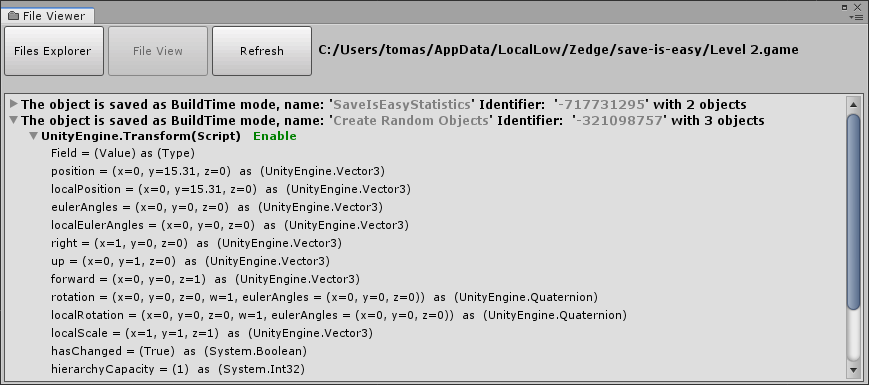
- Files Explorer: goes back to the explorer.
- File View: this view.
- Refresh: reloads the file, looking for changes.
- Files path: the file that is open.
- Item: each saved GameObject, with its name and the identifier of its SaveIsEasyComponent. Click to expand it.
- Component: each saved component of the GameObject and whether it was enabled. Click to see its values.
- Values: the saved values, in the format
<field> = <value> as <type>. For example, when this scene is loaded the position is set tox = 0, y = 15.31, z = 0.
Adapters
Some Unity components are hard to save and load correctly, for example animations. For them the asset has adapters, and you can write your own adapters for what you need. The ones included are in Assets/Save is easy/Adapters; you can change them or add more.
Writing an adapter
An adapter that saves the position of the Transform:
using SaveIsEasy;
using SaveIsEasy.Adapter;
using UnityEngine;

[Adapter(typeof(Transform), true)]
public class PositionAdapter : MonoBehaviour, ISaveIsEasyEvents {

    [AlwaysSave]
    private Vector3 pos;

    public void OnLoad() {
        transform.position = pos;
    }

    public void OnSave() {
        pos = transform.position;
    }
}Adapter: tells the asset that the class is an adapter, and for which component.ISaveIsEasyEvents: the adapter receives theOnSaveevent before the GameObject is saved and theOnLoadevent after its information is loaded.AlwaysSave: the field is saved without selecting it in the SaveIsEasyComponent.
Complex information
Arrays
Arrays of generic types are not supported.
You can save arrays whose type is serializable, such as string:
public string[] list = new string[2];Arrays of your own classes work if the class has the [System.Serializable] attribute and all its fields are serializable:
public MyType[] list = new MyType[2];

[System.Serializable]
public class MyType {
    public float randomFloat;
    public string randomString;
}
Some Unity types are not serializable but are often used in arrays. The asset supports arrays of Vector2, Vector3, Vector4, Color, Quaternion, Keyframe, GradientAlphaKey:
public Vector3[] list = new Vector3[2];Lists
Lists work like arrays:
public List<string> list = new List<string>();
public List<MyType> list2 = new List<MyType>();
public List<Vector3> list3 = new List<Vector3>();
Dictionaries
Dictionaries work if their key and value types are serializable. Generic types can also be used:
public Dictionary<string, int> dict = new Dictionary<string, int>();
public Dictionary<MyType, int> dict2 = new Dictionary<MyType, int>();
public Dictionary<MyGeneric<int, int, string>, int> dict3 = new Dictionary<MyGeneric<int, int, string>, int>();
public Dictionary<int, MyGeneric<int, int, string>> dict4 = new Dictionary<int, MyGeneric<int, int, string>>();

[System.Serializable]
public class MyGeneric<T1, T2, T3> {
    public T1 t1;
    public T2 t2;
    public T3 t3;
}
Generic types
Their types do not need to be serializable.
The asset can save almost any generic type, also with several type parameters or with other generic types inside:
public MyGeneric<int> generic;
public MyGeneric<int, string, int> generic2;
public MyGeneric<int, string, MyGeneric<Vector3, Color, Quaternion>> generic3;

public class MyGeneric<T1> {
    public T1 t1;
}
References to GameObjects and components
The asset saves references to GameObjects and components of the scene. The GameObject itself is not saved: the asset saves an identifier, so when the game is loaded the field points to the same GameObject again.
public GameObject reference;
public BoxCollider reference2;
public Transform reference3;
Multi-scene
The asset supports several scenes loaded at the same time, and you can save and load each one without affecting the others. This is useful for more complex saves.
Most functions of the API have a version that receives the scene, for example LoadAll() and LoadAll(Scene scene).
Each scene needs its own SaveIsEasyManager, with a different File Name, so the save of one scene does not overwrite the save of another.
DontDestroyOnLoad
Unity puts the GameObjects marked with DontDestroyOnLoad in a scene of their own. That scene is saved and loaded with the SaveIsEasyManager of the active scene: do not add another manager to it.
API reference
The public classes of the asset, in the SaveIsEasy namespace.
SaveIsEasyAPI
This is the main asset class, with this class you can Save/Load the game, along with a variety of options.
Properties
IsSaveEncryptedIs the encryption on?
Returns: True = encryption on, False = encryption off
MinimumVersionSupportedOfUnityThe minimum supported version of unity for the asset to work correctly. In the Asset Store you can download a distribution for older versions of unity.
SaveIsEasyManagerGet the actual SaveIsEasyManager
Returns: SaveIsEasyComponent or null
IsSaveIsEasyManagerValidIn the scene is there a 'SaveIsEasyManager' and is it enabled?
Returns: True is valid and enabled, False it is not valid
SaveFolderPathTo get the default save folder path
Returns: The default save folder path
EncryptionConfigReturns the current configuration of the encryption system.
SceneConfigGet the object in charge of managing the configuration for the level
SceneFileNameThe name of the file to save, On set: Only numbers and letters, example: 'level1' and cannot be empty On get: The filename only, example: 'level1', On error return null
IsLoadedTo see if the level is loaded
Returns: If the level is loaded
IsSavedTo see if the level is saved
Returns: If the level is saved
Methods
FileExists(string fileName)To see if the game file already exists. If the route is relative, it is verified from Folder Path.
SaveIsEasyAPI.SaveFolderPathfileName: Only allows '.game' of '.gamecopy' extensions, Supports absolute and relative formats examples: 'level1.game', 'level2', 'test/level3', 'C:/Test/level4', 'C:/Test/level5.game'Returns: Status if the file exists
ListOfValidSaves(string folderPath)This will list all the valid files in the Folder Path
folderPath: The absolute or relative path to the FolderReturns: A list of all the valid files in the folder
ListOfValidSaves()This will list all the valid files in the Folder Path
Returns: A list of all the valid files in the folder
GetOfValidSaves(string fileName)This will return if the file exists and is valid in the Folder Path
fileName: The filename, Supports absolute and relative formats examples: 'level1.game', 'level2', 'test/level3', 'C:/Test/level4', 'C:/Test/level5.game'Returns: SceneFile or null
GetSceneFile(string fileName)This will return if the file exists and is valid in the Folder Path
fileName: The filename, Supports absolute and relative formats examples: 'level1.game', 'level2', 'test/level3', 'C:/Test/level4', 'C:/Test/level5.game'Returns: SceneFile or null
SetSaveFolderPath(string folderPath)To set the default save folder path
folderPath: An absolute path of a folder, Example: 'C:/Test/', 'C:/Test/Levels/'GetSaveIsEasyManagerByScene(Scene scene)Is going to look for the 'SaveIsEasyManager' in charge of managing the scene, the scene has to be loaded.
scene: In the scene where it is going to do the requested, it requires that a 'SaveIsEasyManager' is valid and active in that scene.Returns: The corresponding manager of the scene or null if there is no valid one.
GetEncryptionConfigByScene(Scene scene)Returns the current configuration of the encryption system in the specified scene.
scene: In the scene where it is going to do the requested, it requires that a 'SaveIsEasyManager' is valid and active in that scene.Returns: The encryption configuration.
GetSceneConfigByScene(Scene scene)Get the object in charge of managing the configuration for the level in the specified scene
scene: In the scene where it is going to do the requested, it requires that a 'SaveIsEasyManager' is valid and active in that scene.Returns: The object that is in charge of managing the configuration for the level
GetSceneFileNameByScene(Scene scene)To get the name of the file to save in the specified scene
scene: In the scene where it is going to do the requested, it requires that a 'SaveIsEasyManager' is valid and active in that scene.Returns: The filename as absolute path or relative, examples: 'level1', 'test/level3', 'C:/Test/level4', On error return null
SetSceneFileNameByScene(string value, Scene scene)To set the name of the file to save in the specified scene
value: The file, Supports absolute and relative formats, examples: 'level1.game', 'level2', 'test/level3', 'C:/Test/level4', 'C:/Test/level5.game'scene: In the scene where it is going to do the requested, it requires that a 'SaveIsEasyManager' is valid and active in that scene.IsSaveIsEasyManagerValidByScene(Scene scene)In the scene is there a 'SaveIsEasyManager' and is it enabled and active?
scene: In the scene where it is going to check.Returns: True is valid and enabled, False it is not valid
PrefabInstantiate(GameObject)Obsolete, You don't need to use this anymore, you can instance directly using unity API, UnityEngine.Object.Instantiate(Object original)
PrefabInstantiate(GameObject, Vector3, Quaternion)Obsolete, You don't need to use this anymore, you can instance directly using unity API, UnityEngine.Object.Instantiate(Object original)
PrefabInstantiate(GameObject, Transform)Obsolete, "You don't need to use this anymore, you can instance directly using unity API, UnityEngine.Object.Instantiate(Object original)
SaveAll()To save the game, with the actual SceneFileName
SaveAll(Scene scene)To save the game, with the actual SceneFileName in the specified scene.
scene: In the scene where it is going to do the requested, it requires that a 'SaveIsEasyManager' is valid and active in that scene.SaveAll(bool runInThread)To save the game, with the actual SceneFileName
runInThread: This needs to run in a thread?, recommended trueSaveAll(bool runInThread, Scene scene)To save the game, with the actual SceneFileName in the specified scene.
runInThread: This needs to run in a thread?, recommended truescene: In the scene where it is going to do the requested, it requires that a 'SaveIsEasyManager' is valid and active in that scene.SaveAll(string fileName, bool runInThread)To save the game
fileName: The file name, Supports absolute and relative formats examples: 'level1.game', 'level2', 'test/level3', 'C:/Test/level4', 'C:/Test/level5.game'runInThread: This needs to run in a thread?, recommended true.SaveAll(string fileName)To save the game
fileName: The file name, Supports absolute and relative formats examples: 'level1.game', 'level2', 'test/level3', 'C:/Test/level4', 'C:/Test/level5.game'SaveAll(string fileName, Scene scene)To save the game in the specified scene.
fileName: The file name, Supports absolute and relative formats examples: 'level1.game', 'level2', 'test/level3', 'C:/Test/level4', 'C:/Test/level5.game'scene: In the scene where it is going to do the requested, it requires that a 'SaveIsEasyManager' is valid and active in that scene.SaveAll(string fileName, bool runInThread, Scene scene)To save the game in the specified scene.
fileName: The file name, Supports absolute and relative formats examples: 'level1.game', 'level2', 'test/level3', 'C:/Test/level4', 'C:/Test/level5.game'runInThread: This needs to run in a thread?, recommended true.scene: In the scene where it is going to do the requested, it requires that a 'SaveIsEasyManager' is valid and active in that scene.LoadAll()To load the game, with the actual SceneFileName, not running in thread, and erasing invalids gameObjects
LoadAll(Scene scene)To load the game in the specified scene.
scene: In the scene where it is going to do the requested, it requires that a 'SaveIsEasyManager' is valid and active in that scene.LoadAll(bool eraseInvalidsGameObject, bool runInThread)To load the game, with the actual SceneFileName
eraseInvalidsGameObject: To erase old or invalids GameObjects with SaveIsEasyComponent, recommended truerunInThread: This needs to run in a thread?, recommended trueLoadAll(bool eraseInvalidsGameObject, bool runInThread, Scene scene)To load the game in the specified scene, with the actual SceneFileName.
eraseInvalidsGameObject: To erase old or invalids GameObjects with SaveIsEasyComponent, recommended truerunInThread: This needs to run in a thread?, recommended truescene: In the scene where it is going to do the requested, it requires that a 'SaveIsEasyManager' is valid and active in that scene.LoadAll(string fileName, bool eraseInvalidsGameObject, bool runInThread)To load the game
fileName: The file name, Supports absolute and relative formats examples: 'level1.game', 'level2', 'test/level3', 'C:/Test/level4', 'C:/Test/level5.game'eraseInvalidsGameObject: To erase old or invalids GameObjects with SaveIsEasyComponent, recommended truerunInThread: This needs to run in a thread?, recommended trueLoadAll(string fileName)To load the game.
fileName: The file name, Supports absolute and relative formats examples: 'level1.game', 'level2', 'test/level3', 'C:/Test/level4', 'C:/Test/level5.game'LoadAll(string fileName, Scene scene)To load the game in the specified scene.
fileName: The file name, Supports absolute and relative formats examples: 'level1.game', 'level2', 'test/level3', 'C:/Test/level4', 'C:/Test/level5.game'scene: In the scene where it is going to do the requested, it requires that a 'SaveIsEasyManager' is valid and active in that scene.LoadAll(string fileName, bool eraseInvalidsGameObject, bool runInThread, Scene scene)To load the game in the specified scene.
fileName: The file name, Supports absolute and relative formats examples: 'level1.game', 'level2', 'test/level3', 'C:/Test/level4', 'C:/Test/level5.game'eraseInvalidsGameObject: To erase old or invalids GameObjects with SaveIsEasyComponent, recommended truerunInThread: This needs to run in a thread?, recommended truescene: In the scene where it is going to do the requested, it requires that a 'SaveIsEasyManager' is valid and active in that scene.LoadSceneAndGame()Load the corresponding scene of SaveIsEasyAPI.SceneFileName and then load the game.
LoadSceneAndGame(string fileName)Load the corresponding scene and then load the game.
fileName: The file name, Supports absolute and relative formats examples: 'level1.game', 'level2', 'test/level3', 'C:/Test/level4', 'C:/Test/level5.game'LoadSceneAndGame(string fileName, SceneFile.LoadSceneBy loadSceneBy, bool eraseInvalidsGameObject, bool runInThread)Load the corresponding scene and then load the game.
fileName: The file name, Supports absolute and relative formats examples: 'level1.game', 'level2', 'test/level3', 'C:/Test/level4', 'C:/Test/level5.game'loadSceneBy: How to look for the sceneeraseInvalidsGameObject: To erase old or invalids GameObjects with SaveIsEasyComponent, recommended truerunInThread: This needs to run in a thread?, recommended trueLoadSceneAndGame(string fileName, SceneFile.LoadSceneBy loadSceneBy, bool eraseInvalidsGameObject, bool runInThread, LoadSceneMode mode)Load the corresponding scene and then load the game.
fileName: The file name, Supports absolute and relative formats examples: 'level1.game', 'level2', 'test/level3', 'C:/Test/level4', 'C:/Test/level5.game'loadSceneBy: How to look for the sceneeraseInvalidsGameObject: To erase old or invalids GameObjects with SaveIsEasyComponent, recommended truerunInThread: This needs to run in a thread?, recommended truemode: In the mode that is going to load the scene.
SaveIsEasyManager
To Manager the save system, file name, auto save, save on exit, encrypt, ect.. You only need one 'SaveIsEasyManager' per scene. WARNINGS: - You can only have one "SaveIsEasyManager" per scene. - You should not create or Instantiate "SaveIsEasyManager" in a scene that is already loaded.
Properties
IsSavedTo see if the level is saved
Returns: If the level is saved
IsLoadedTo see if the level is loaded
Returns: If the level is loaded
SaveIsEasyComponent
To save a GameObject you need this component
Properties
OnLoadWhen a game is loaded the asset has to call Start() of all the scripts of this GameObject, this is slow, if it is not used it is recommended to turn off.
IdentifierReturns the Identifier(ID) assigned to this SaveIsEasyComponent, is used to track this GameObject during its life. The ID may not correspond to the ID of the prefab, if the object is created in RunTime in the scene the ID will be the same as that of the prefab.
Returns: A number in the range of int.MinValue to int.MaxValue
Methods
IsRuntimeObject()If this object was create at runtime
Returns: true is RunTime, false is BuildTime
SaveIsEasyComponent.OnLoadEvent
In which way the asset has to handle the events in this gameobject.
Fields
CallStartAfterLoadingThis will first load the GameObject information and then call the Start().
CallStartBeforeLoadingThis will cause the Start() to be called first and then the GameObject information will be loaded.
CallStartBeforeAndAfterLoadingThis will cause the Start() to be called before and after the information is loaded.
OffThe asset is not going to call Start()
SaveIsEasyStatistics
Record statistics of all kinds to save and use them later.
Properties
TotalTimeInSecondsThe total time he spent playing at this save, in seconds.
LoadsThe amount of times the game was load.
CreationDateThe time in which the game was created, in UTC format.
SaveScreenshotTo save a screenshot when the game is saved
SceneConfig
It is the object in charge of managing the configuration for the level
Properties
SceneFileNameThe default name of the file to save and load On set: The file, Supports absolute and relative formats, examples: 'level1.game', 'level2', 'test/level3', 'C:/Test/level4', 'C:/Test/level5.game' On get: The file in a absolute path, examples: 'C:/Test/level4', 'C:/Test/level5.game'
AutoSavingTo active AutoSaving by time
AutoLoadOnPlayTo automatically load the game on play
OnExitSaveTo automatically save at game exit
DuplicateSaveFileThis is to create a copy of the saved file, In case there is any problem, do not lose the saved (all this is handled automatically by the asset)
ExclusiveFilesIt only allows loading the game when it was saved in the same scene as where it is trying to load.
AutoSavingRunInThreadTo set that AutoSaving run In separate thread
TimeBetweenSavesInSecondsTime Between saves in Seconds
AutoSavingIntervalTime Between saves in Seconds
CurrentTimeToSaveWhen this number is greater than or equal to "Auto Saving Interval" it will be placed in sero and an auto-save will be made. Every second in the game adds 1.
Methods
SetEncrypt(bool active)To activate or deactivate the encryption tool
active: true = files are encrypted, false = files are not encryptedReturns: The operation was successful, true = yes, false = error
SetEncrypt(bool active, string password)To activate or deactivate the encryption tool
active: true = files are encrypted, false = files are not encryptedpassword: The password to encrypt the filesReturns: The operation was successful, true = yes, false = error
SetEncryptionConfig(SceneConfig.EncryptionConfig newEncryptionConfig)To activate or deactivate the encryption tool
newEncryptionConfig: The encryption configuration.Returns: The operation was successful, true = yes, false = error
SetEncryptionConfig(SceneConfig.EncryptionConfig newEncryptionConfig, string password)To activate or deactivate the encryption tool
newEncryptionConfig: The encryption configuration.password: The password to encrypt the filesReturns: The operation was successful, true = yes, false = error
Fields
DefaultSaveNameThe default save name for the file
SceneConfig.EncryptionConfig
The encryption configuration.
Fields
SaveAndLoadIt encrypts the information that is saved with this manager (this does not include QuickAccess information), and allows the loading of encrypted information with the same password or unencrypted information.
OnlyLoadLoad encrypted or unencrypted games, Does not encrypt the information when it is saved(For conversion from encrypted system to normal).
OffTurn off the encryption system.
SceneFile
An object that allows managing the properties of a saved
Properties
QuickAccessAll the quick access values that were loaded from the file. key(string) the name of the field -> object
StatisticsLoadsThe amount of times the game was load.
StatisticsTotalTimeInSecondsThe time he spent playing at this save, in seconds.
StatisticsTotalTimeInSecondsAsTimeSpanThe time he spent playing at this save.
StatisticsCreationDateThe time in which the game was created, in UTC format.
StatisticsCreationDateAsDateTimeThe time in which the game was created.
StatisticsScreenshotAsTexture2DTo get the screenshot when the game was saved.
StatisticsScreenshotAsSpriteTo get the screenshot when the game was saved.
LastModifiedDateReturns the date and time, in coordinated universal time (UTC), of the last saved.
HasSaveIsEasyStatisticsIf the game was saved with a SaveIsEasyStatistics enable.
SceneNameThe Name of the scene that was loaded when the game was saved.
ScenePathThe Path of the scene that was loaded when the game was saved.
SceneBuildIndexThe BuildIndex of the scene that was loaded when the game was saved.
FormatVersionGets the build version of the asset
NameReturns the file name of save without the extension.
Returns: This only returns the name of the file, example: 'level1'
CopyTo get the copy file
Returns: This will return null if the copy file not exists
ErrorMessageThis is to get the error message that has been produced in the load of the object.
Returns: Empty string for not error, Or the error message.
Methods
IsEncrypted()If this file encrypted?
Returns: True = it is encrypted, False = it is not encrypted
IsCopy()Is this object a copy of a saved file?
Returns: False = it is not a copy, True = It is a copy file
HaveCopy()This file has a copy or is a copy?
Returns: True = has a copy, False = not has a copy
Delete()Delete this save file and if have a copy that too.
Rename(string newName)To rename this file name and if have a copy that too
Duplicate(string newName)To create a copy of this save file
newName: The new name, Supports absolute and relative formats examples: 'level2', 'test/level3', 'C:/Test/level4'Returns: The new file that was created
CheckIntegrity()This will try to read all file data to verify the integrity
Returns: An enum with the result of whether the file is valid or not.
CheckIntegrity(Scene scene)This will try to read all file data to verify the integrity
scene: In the scene where it is going to do the requested, it requires that a 'SaveIsEasyManager' is valid and active in that scene.Returns: An enum with the result of whether the file is valid or not.
GetQuickAccessObject(string name)Get a value that was saved with
QuickAccessAttribute.name: The name of the field that was saved.Returns: The value, if it is not found, the function returns null.
GetAccessObjectAsType<T>(string name)Get a value that was saved with
QuickAccessAttribute.name: The name of the field that was saved, Case sensitive.Returns: The value, if it is not found, the function returns default(T).
GetQuickAccessInt32(string name)Get a value that was saved with
QuickAccessAttribute.name: The name of the field that was saved.Returns: The value, if it is not found, the function returns 0.
GetQuickAccessBoolean(string name)Get a value that was saved with
QuickAccessAttribute.name: The name of the field that was saved.Returns: The value, if it is not found, the function returns false.
GetQuickAccessSingle(string name)Get a value that was saved with
QuickAccessAttribute.name: The name of the field that was saved.Returns: The value, if it is not found, the function returns 0.
GetQuickAccessString(string name)Get a value that was saved with
QuickAccessAttribute.name: The name of the field that was saved.Returns: The value, if it is not found, the function returns "".
GetQuickAccessInt64(string name)Get a value that was saved with
QuickAccessAttribute.name: The name of the field that was saved.Returns: The value, if it is not found, the function returns 0.
GetQuickAccessDouble(string name)Get a value that was saved with
QuickAccessAttribute.name: The name of the field that was saved.Returns: The value, if it is not found, the function returns 0.
HasKeyQuickAccess(string name)To know if there is a field in quick access.
name: The name of the field that was saved.Returns: True = the field exists, False = the field does not exist.
LoadSceneAndGame()Load the corresponding scene and then load the game.
LoadSceneAndGame(SceneFile.LoadSceneBy loadSceneBy, bool eraseInvalidsGameObject, bool runInThread)Load the corresponding scene and then load the game.
loadSceneBy: How to look for the scene.eraseInvalidsGameObject: To erase old or invalids GameObjects with SaveIsEasyComponent, recommended true.runInThread: This needs to run in a thread?, recommended true.LoadSceneAndGame(SceneFile.LoadSceneBy loadSceneBy, bool eraseInvalidsGameObject, bool runInThread, LoadSceneMode mode)Load the corresponding scene and then load the game.
loadSceneBy: How to look for the scene.eraseInvalidsGameObject: To erase old or invalids GameObjects with SaveIsEasyComponent, recommended true.runInThread: This needs to run in a thread?, recommended true.mode: In the mode that is going to load the scene.
SceneFile.LoadSceneBy
How to look for the scene.
Fields
SceneNameI look for the scene by its Name.
ScenePathI look for the scene by Path.
SceneBuildIndexI look for the scene by its Build Index.
SceneFile.IntegrityResult
Indicates the result of an integrity test of a saved file.
Fields
ErrorThe integrity check could not be started due to an error.
CorruptedThe file is invalid or has been corrupted.
ValidIs a valid file.
SceneFileCopy
An object that allows to handle the properties of the copy of a saved
Properties
OriginalTo get the original save file
Returns: The original save file
Methods
Rename(string newName)To rename this file name and if have a copy that too
Delete()Delete this save file and if have a copy that too.
Duplicate(string newName)To create a copy of this save file
newName: The new nameReturns: The new file that was created
IsCopy()Is this object a copy of a saved file?
Returns: False = it is not a copy, True = It is a copy file
HaveCopy()This file has a copy or is a copy?
Returns: True = has a copy, False = not has a copy
ISaveIsEasyEvents
Use this interface to subscribe to asset events
Methods
OnLoad()The event is sent to an script when the GameObject have been completely loaded.
OnSave()The event is sent to an script when the GameObject has start to be saved.
AlwaysSaveAttribute
To force the save of this variable, it can not be turned off from the editor.
It will always be saved.
AvoidSavingAttribute
If you want this field can not be saved, it does not appear in the editor
QuickAccessAttribute
This allows you to save certain attributes separately from the game, so that they are available without having to load the entire file. It is used for the menu that lists the saved games.
Properties
NameThe name with which the field will be saved.
Methods
QuickAccessAttribute(string name)So the field is available with quick access.
name: The name with which the field will be saved.QuickAccessAttribute()So the field is available with quick access.
Adapter.AdapterAttribute
Some unity components are very complicated for SaveIsEasy to save them and load them correctly, so the asset has adapters, it allows you to save more complicated components, such as animations, it is designed so that the user can create adapters according to their needs.
Properties
AdapterForTo know what component it modifies and allows it to be saved and loaded
ShowInnerFieldsThe SaveIsEasyComponent should allow the fields of the component being adapted to be displayed
Methods
AdapterAttribute(Type adapterFor, bool showInnerFields)The component that has this attribute will work as an adapter for another component
adapterFor: To know what component it modifies and allows it to be saved and loadedshowInnerFields: The SaveIsEasyComponent should allow the fields of the component being adapted to be displayed
SaveIsEasyException
To handle all internals errors
Methods
SaveIsEasyException()Exception derived constructor
SaveIsEasyException(string, Exception)Exception derived constructor
SaveIsEasyException(SerializationInfo, StreamingContext)Exception derived constructor
SaveIsEasyException(string)Exception derived constructor
IUpgradeable
To mark that the class requires an Upgrade
Methods
Upgrade()To Upgrate the object
SaveIsEasyDebug
Class designed to handle the save is easy debug
Fields
EnableDebugTo turn on and off the debug from save is easy to Unity3D
SerializableComponent
Obsolete -> Use SaveIsEasyComponent
Methods
Upgrade()To Upgrate from SerializableComponent to SaveIsEasyComponent
SerializableManager
Obsolete -> Use SaveIsEasyManager
Methods
Upgrade()To Upgrate SerializableManager to SaveIsEasyManager
Contact
For questions, problems or suggestions, write to zedgeincorporation@gmail.com, in English or Spanish.